Reading notes for iPhone & iPad

Keep the passages that stayed with you.

Tap Add and the camera opens right away. Photograph the page, select the lines you want, and Ocren turns them into text on your shelf. Text recognition runs entirely on your iPhone: neither your photos nor the recognized text are sent anywhere.

View on the App Store

Free (with ads) · iPhone & iPad · iOS 17 or later · English and Japanese

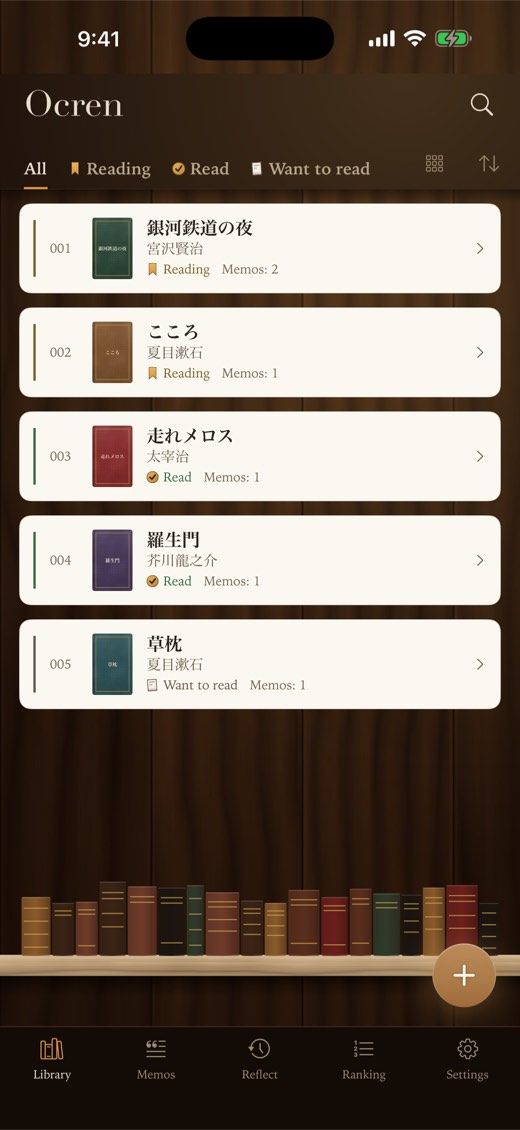
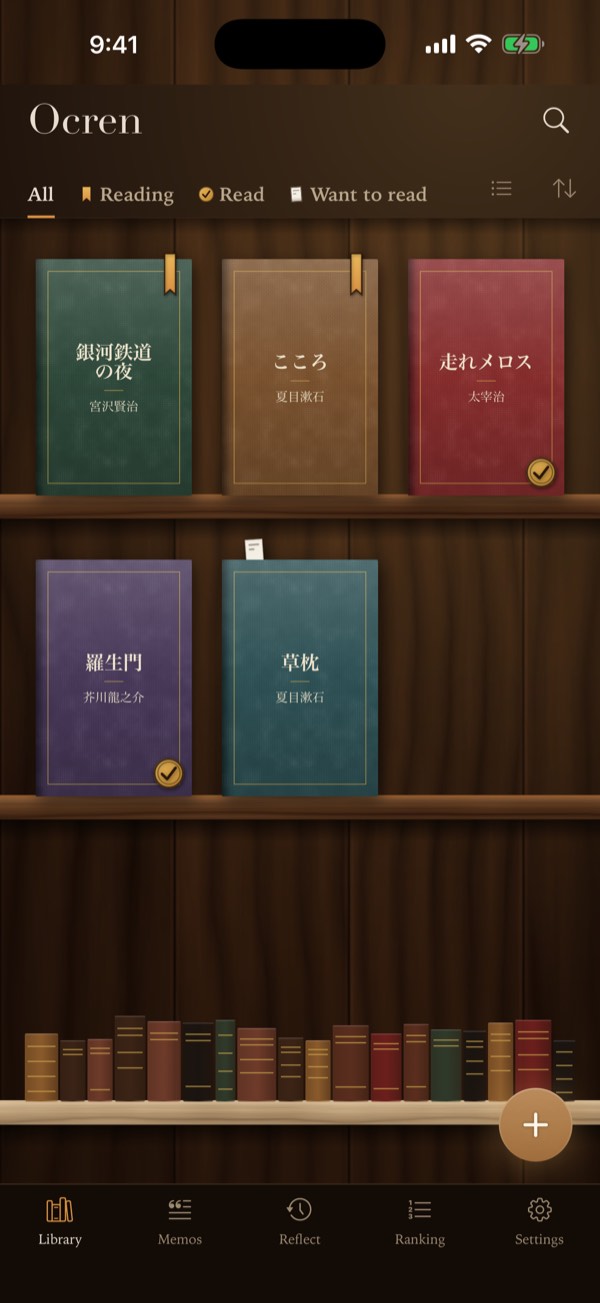
The Library tab: book covers standing on a wooden shelf, each with a mark for Reading, Read, or Want to read

How it works

Photograph. Select. Keep.

No retyping. Ocren reads vertical and horizontal Japanese text, and reads the page number from the photo too.

  1. Photograph

    On a book’s page, tap Add. The camera opens at once. You can also pick a photo, such as an e-book screenshot, or type the memo yourself.

  2. Select

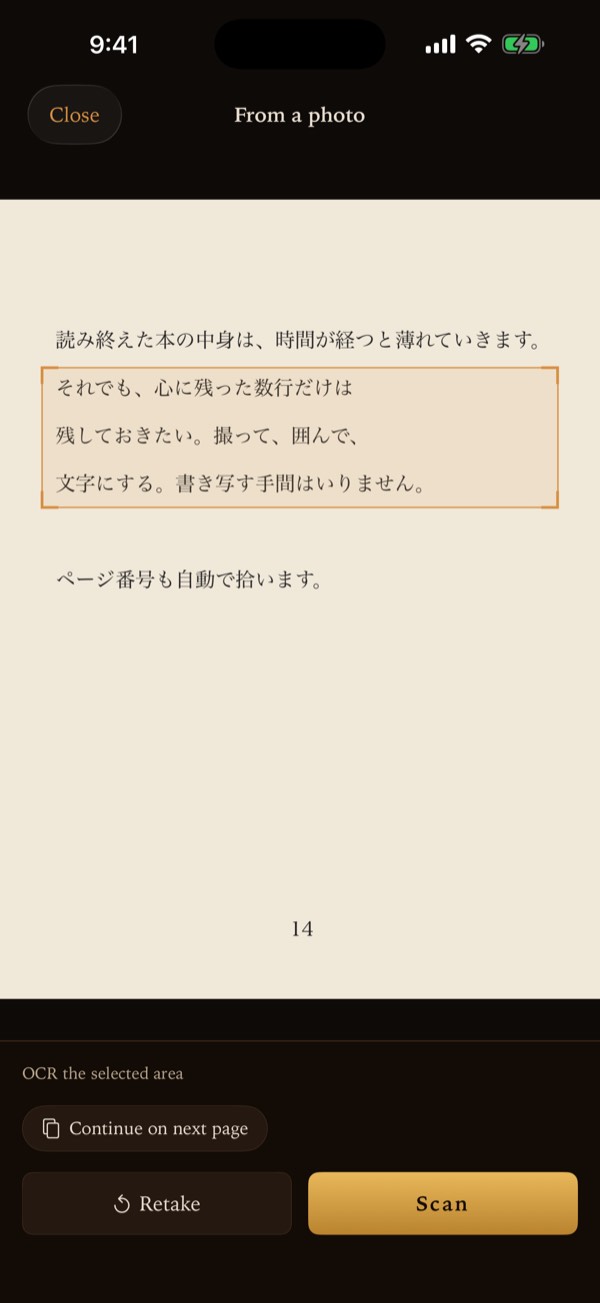
    Drag over the lines you want to keep and tap Scan. Recognition runs on your device, even in airplane mode.

  3. Keep

    The text is kept exactly as read; whether to correct it is up to you. Add a note, the page, and one of 7 colored flags.

Capture

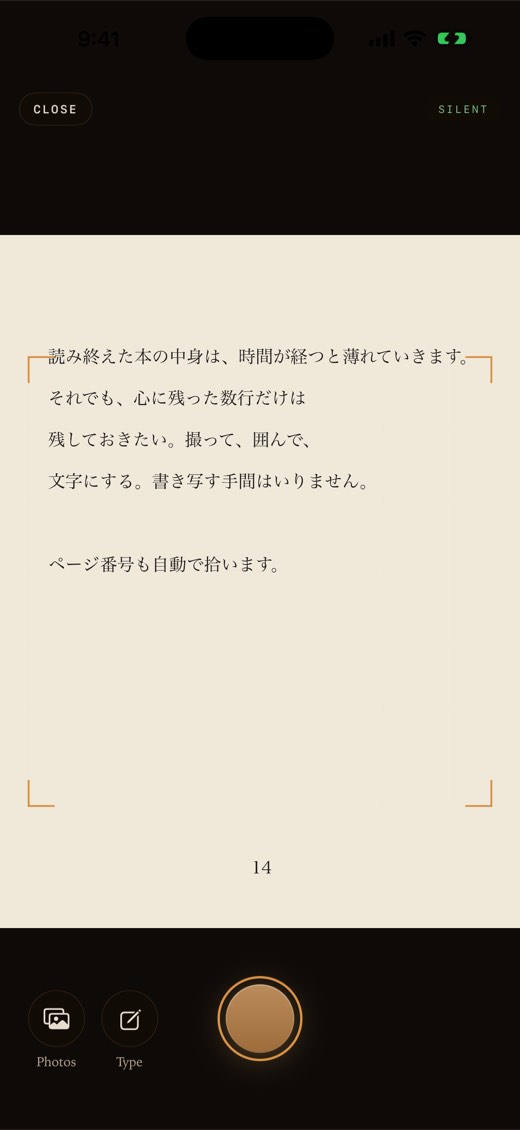
The camera is one tap away

Select just the passage, or nothing at all to read the whole page. If Ocren isn’t sure about a result, it tells you why and lets you try again more carefully, select a different area, retake the photo, or edit the result. Nothing is thrown away.
How capturing works

The camera screen with a book page in the viewfinder, and the Photos and Type buttons next to the shutter
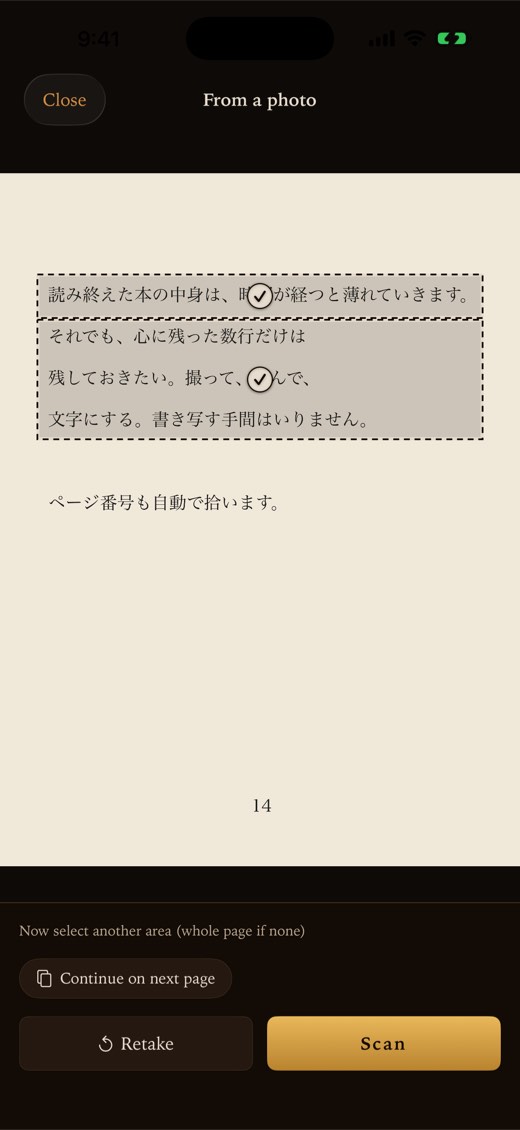
The selection screen: three lines of the page are framed, with Continue on next page, Retake, and Scan below

New in 2.2

Across pages, or many from one photo.

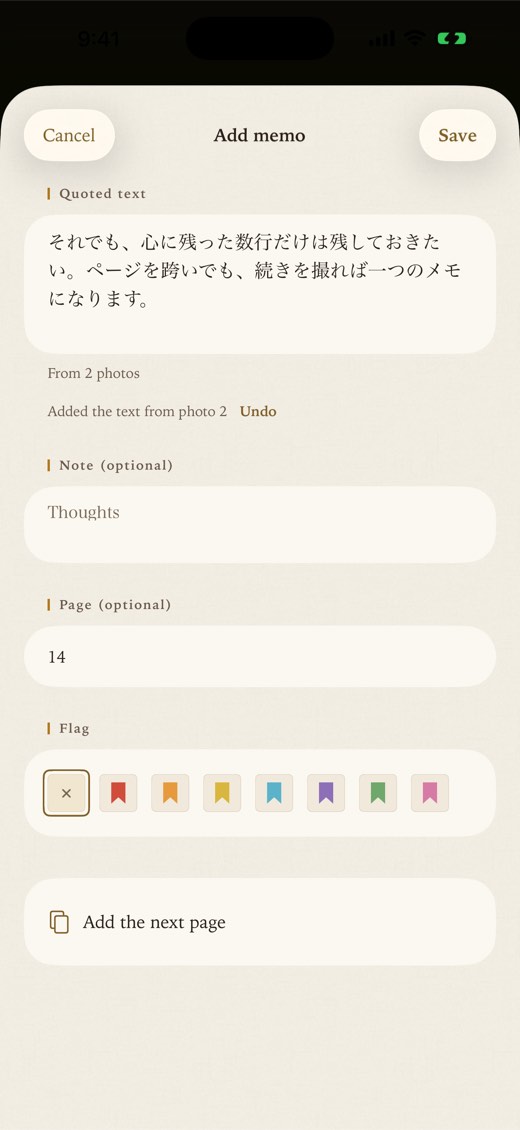
  • A passage that runs onto the next page: tap Continue on next page and photograph the next page. The text is joined into one memo, and Undo takes the last page back off.
  • Several memos from one photo: tap Save, then select another area. You stay on the same photo; areas you have saved are marked with a ✓.
  • Never lose a half-written memo: if iOS closes Ocren before you save, the text is kept on your device and offered back the next time you tap Add on that book.

See the steps

The same photo after saving two memos: each saved area has a dotted frame and a check mark
The memo form after adding a second page: From 2 photos, Added the text from photo 2, Undo

Library

Your books, on a wooden shelf.

Covers stand on the shelf, and a mark on each cover shows where you are with it. The shapes differ, so you don’t have to rely on color:

  • Reading: a bookmark ribbon
  • Read: a round seal with a check
  • Want to read: a paper slip peeking out

Add a book by scanning its ISBN barcode, by searching for the title or author, or by typing it in. A book without a cover image gets a cloth cover printed with its title. Switch to a numbered record view any time.

The Library in record view: numbered cards with title, author, status, and number of memos

Memos, notes & flags

Add your own words.

Each memo can carry a Note with your thoughts, the page number, and one of seven colored flags. Rename the flags to suit you: Important, Later, Insight, Quote, Question, Resonates, Favorite are just the defaults.

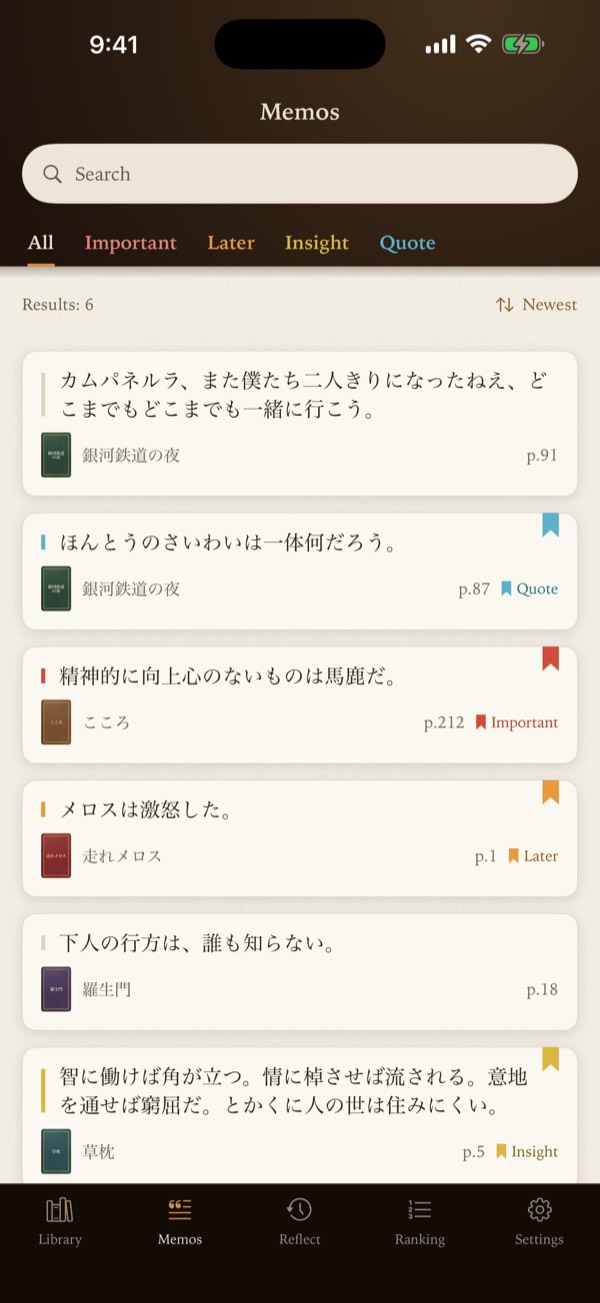
On each book’s page, search inside that book or filter its memos by flag. The Memos tab gathers everything: search by the words themselves, a note, or a book title, and sort by Newest or By book.

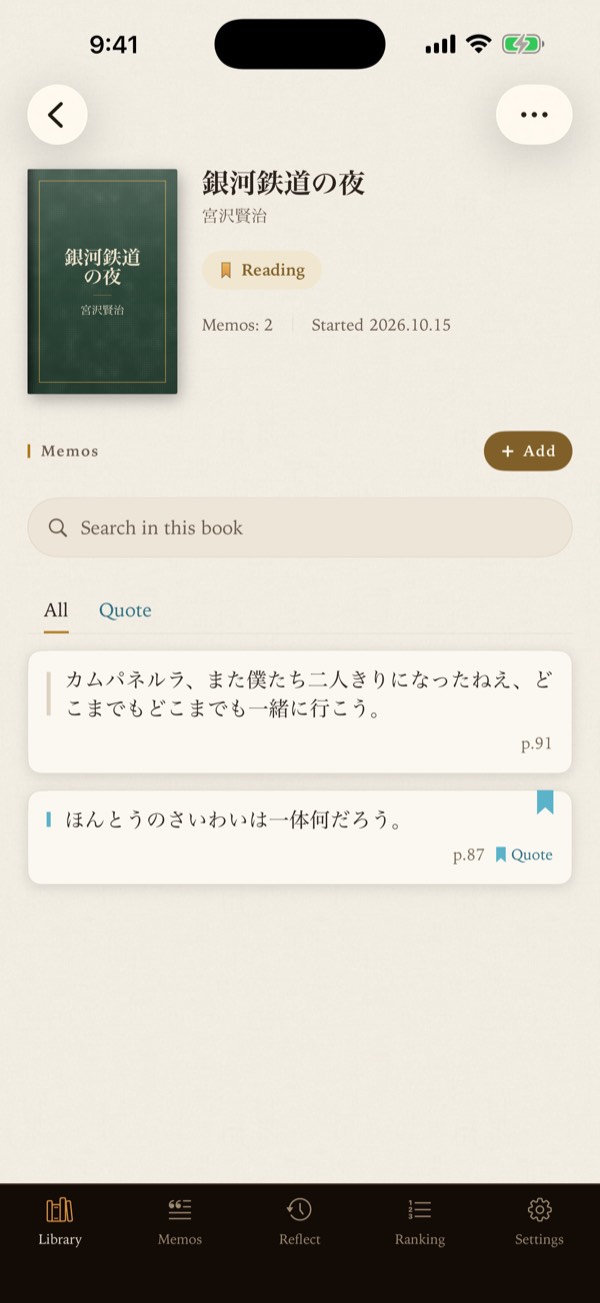
A book’s page: the cover, the Reading status, the Add button, a search field, and two memos
The Memos tab: memos from several books with page numbers and flags

Reflect

Meet your memos again.

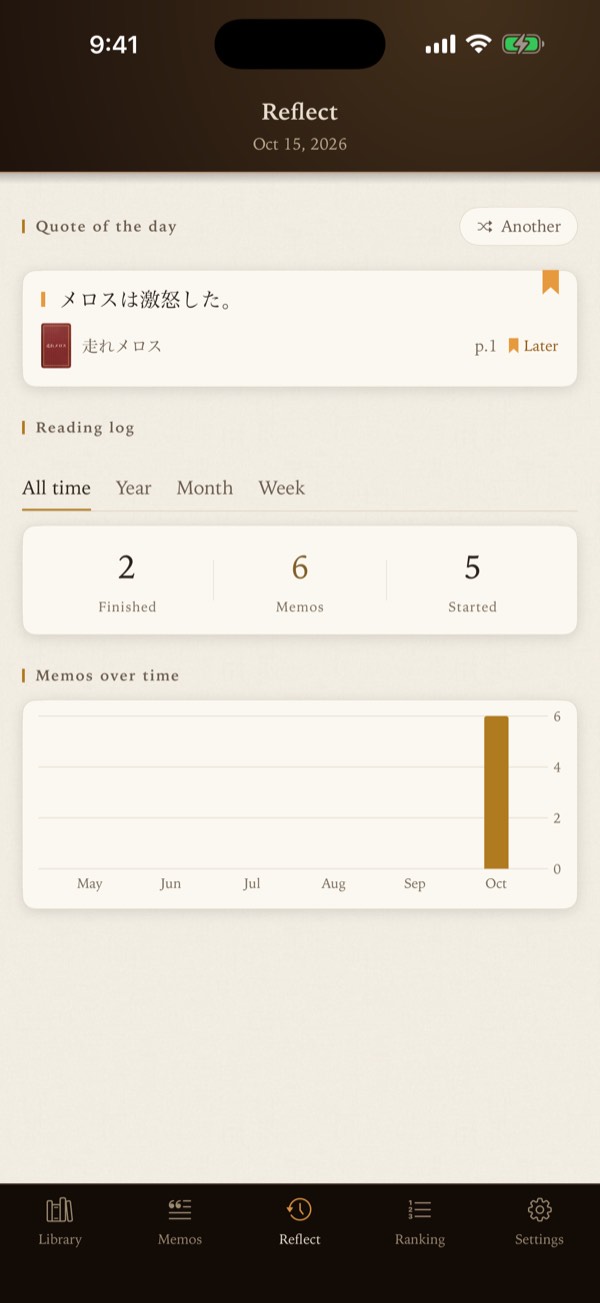
Quote of the day brings back one of your memos at random; tap Another for a different one. A daily reminder can deliver a memo at the time you choose.

The Reading log counts books finished, memos saved, and books started, for all time, this year, this month, or this week, with a chart of your memos over time.

The Reflect tab: Quote of the day, the Reading log with All time, Year, Month and Week, and a bar chart

Ranking

From everyone’s shelves.

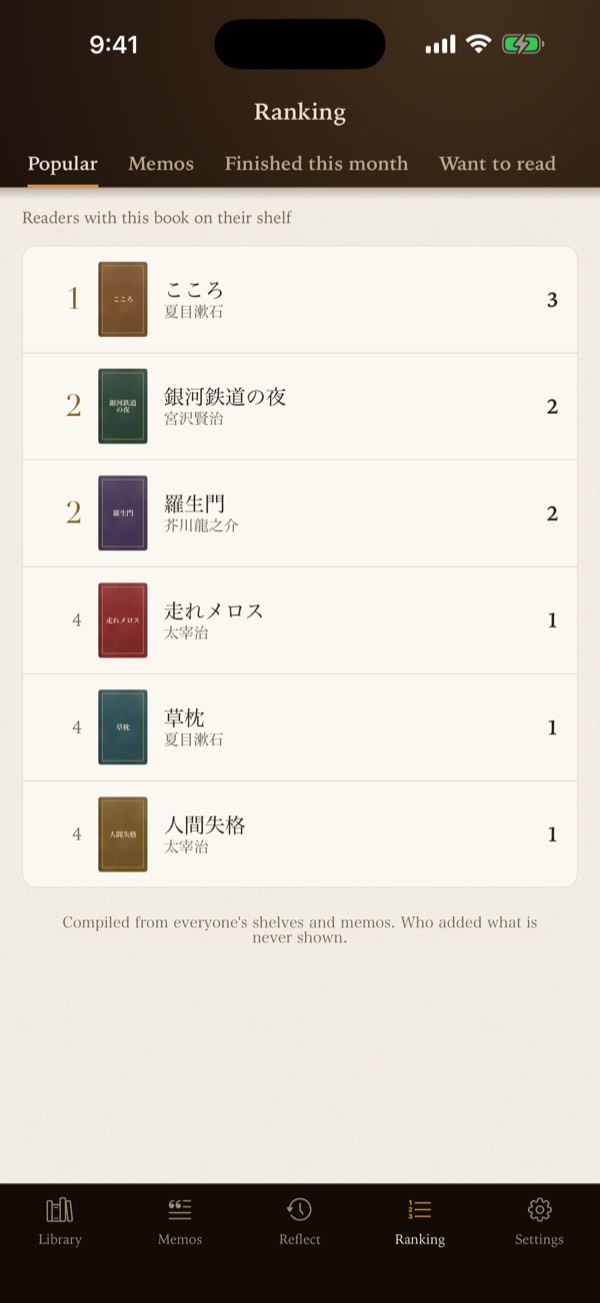
Four rankings compiled from readers’ shelves and memos: Popular, Memos, Finished this month, and Want to read.

Only the title, author, cover, and counts are shown. Who added a book, and the text of anyone’s memos, are never shown.

The Ranking tab: books ranked by the number of readers who have them on their shelf

Quote cards

Share a favorite line.

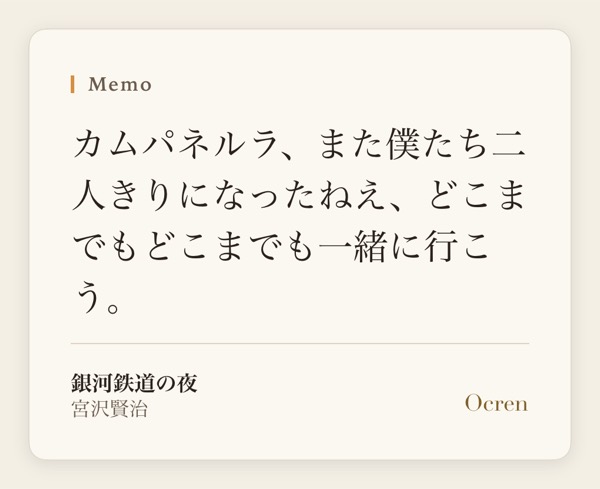
From a memo, tap Share to make a card image on cream paper with the passage, the book’s title and author, and the Ocren wordmark. Your note and the page number stay private: they are not on the card.

A quote card: a passage from Night on the Galactic Railroad in Japanese, with the title, the author, and the Ocren wordmark

On device

Recognition stays on your device.

All text recognition happens on your iPhone or iPad. Neither your photos nor the recognized text are sent to a server, and photos are not saved.

It works without a connection, even in airplane mode.

The memos you save are stored in your account so they carry over to a new phone. See the Privacy Policy for details.

And also

Made to keep.

New phone, same shelf

Sign in with Apple or Google. Your books and memos are saved to your account and open on a new device.

Works offline

Capturing, recognition, and saving and searching memos all work without a connection. Changes sync automatically when you’re back online.

iPhone & iPad

For iPhone with iOS 17 or later and iPad with iPadOS 17 or later. In English or Japanese, in light or dark.

Pricing

Free, with an option to remove ads.

The app

Free

Every feature included (with ads)

Remove Ads (Monthly)

¥100 / month

Cancel anytime

Remove Ads (Yearly)

¥1,000 / year

Costs less than paying monthly

Remove Ads turns off every banner and full-screen ad. Prices shown are for Japan; the App Store shows your local price. Subscriptions renew automatically unless canceled at least 24 hours before the end of the current period, and you can cancel anytime in your App Store settings.

New to Ocren?

The guide walks through every screen, step by step, with pictures.

Read the guide

Support

Contact

For bug reports, questions, or feature requests, please email us. In the app: Settings ▸ Info ▸ Contact us.

ocren_support@googlegroups.com